

Overview
Claude Code is Anthropic’s official command-line tool that brings Claude’s intelligence directly into your terminal. It can understand your codebase, edit files, run commands, and help you build software faster. By connecting Claude Code CLI to AihubMax, you can access Claude’s full capabilities through AihubMax’s reliable API infrastructure — direct network access from China, pay-as-you-go with no balance expiration, and transparent, traceable channels.We provide a dedicated endpoint optimized for Claude Code CLI. Use
https://api.aihubmax.com as the Base URL for the best experience.Prerequisites
Node.js 18+
Required for installing Claude Code via npm. Download Node.js →
Git
Git is required for Claude Code to function properly. Download Git →
AihubMax API Key
You need a valid AihubMax API Key. See the installation steps below for how to obtain one. Go to AihubMax →
Python (Optional)
Some advanced features may require a Python environment. Download Python →
Windows users: If you encounter errors running commands, open PowerShell as Administrator and run the following command, then select 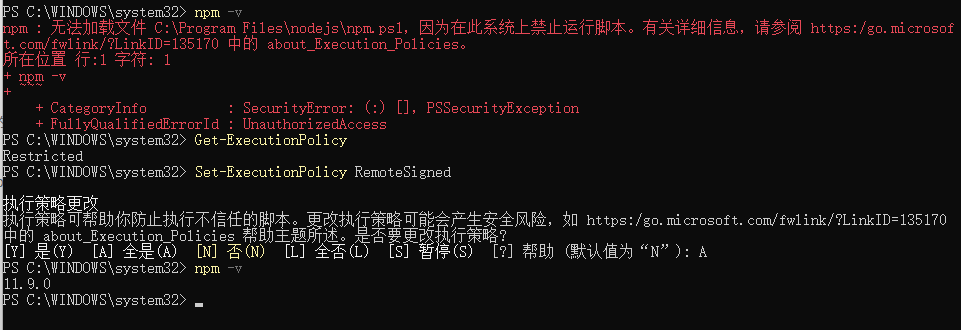
A:Installation & Configuration
1
Step 1: Install Claude Code CLI
Choose your installation method based on your operating system:Verify the installation:
- Windows (npm)
- macOS / Linux (Recommended)
- macOS / Linux (npm)
Open a new PowerShell window and run:
2
Step 2: Get Your API Key
Go to the AihubMax Console and complete the following:
- Create an account: Register at api.aihubmax.com
- Create an API key: On the API Keys page, click “Create Key”
3
Step 3: Configure Environment
We recommend using CC-Switch for one-click configuration, or you can manually edit the configuration file.
- CC-Switch (Recommended)
- Settings File (Manual)
- Environment Variables (Manual)
CC-Switch is a configuration tool built for Claude Code that supports one-click API Key import.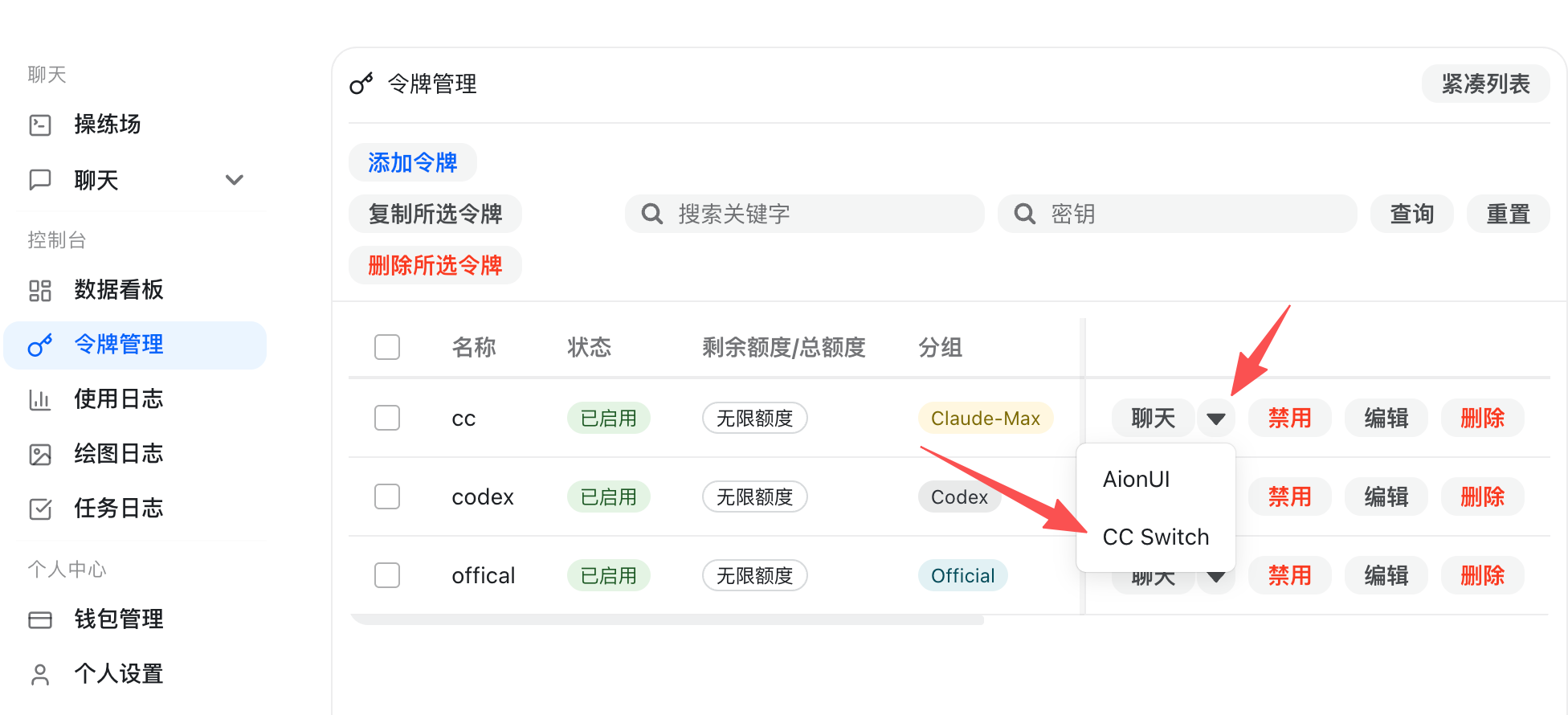
- Download and install from CC-Switch GitHub Releases:
- Windows: Download
CC-Switch-xxxx-Windows.msiand install - macOS: Download
CC-Switch-xxxx-macOS.dmgand install
- Windows: Download
- Open the API Keys page in the AihubMax Console, and click the “Import to CCS” button to automatically complete the configuration
4
Step 4: Install VSCode Extension (Optional)
If you use VSCode, you can install the official extension for a better integrated experience: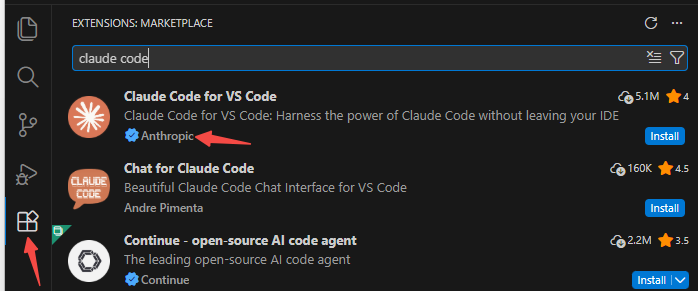
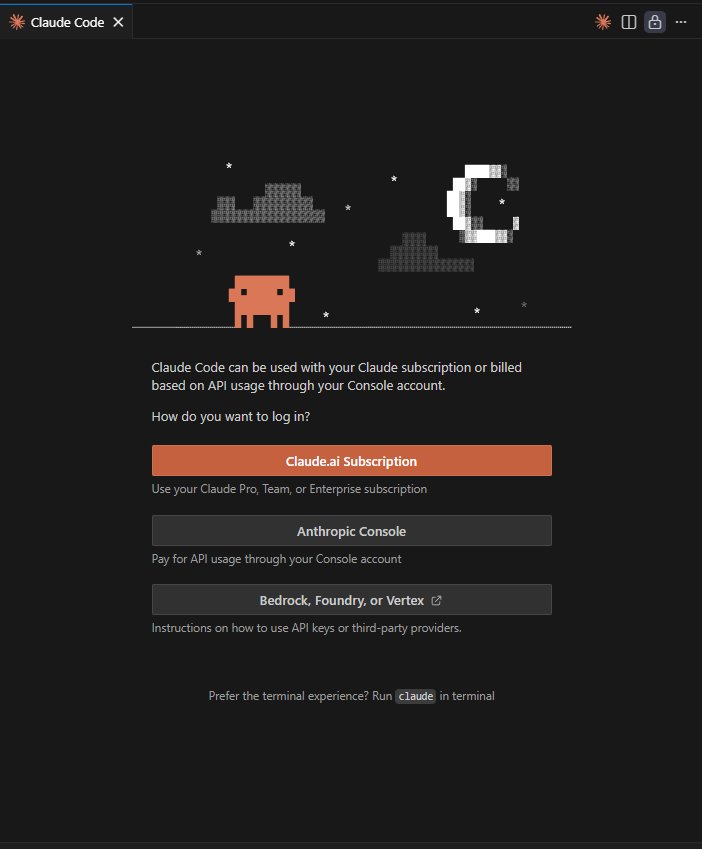
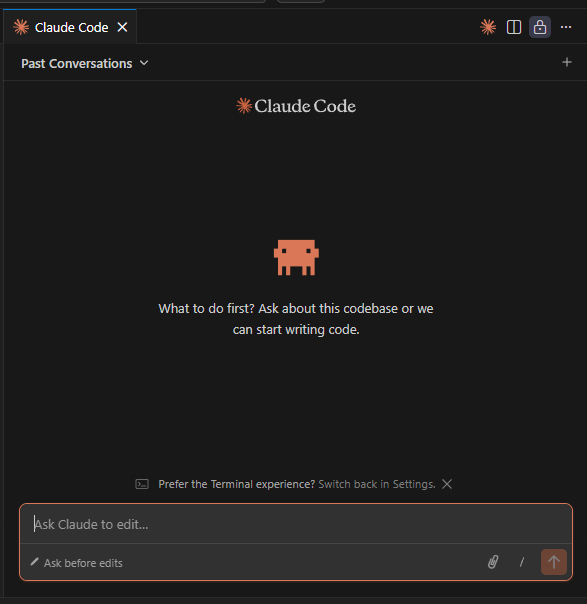
- Download and install VSCode
- Search for Claude Code in the extension marketplace. Make sure the author is Anthropic
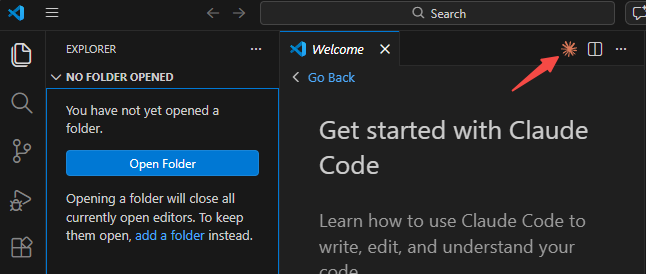
- After installation, you’ll see the Claude Code panel in the VSCode sidebar
5
Step 5: Start Using
Launch Claude Code in your project directory:This opens an interactive session where you can chat with Claude about your codebase.You can also run one-off commands:
Verify the Connection
Run the following command to confirm Claude Code is correctly routing through AihubMax:Usage Examples
Explore a codebase
Explore a codebase
Fix a bug
Fix a bug
Write tests
Write tests
Refactor code
Refactor code
Troubleshooting
Error: Connection refused or timeout
Error: Connection refused or timeout
- Verify
ANTHROPIC_BASE_URLis set tohttps://api.aihubmax.com(no trailing slash). - Check your network connection and ensure you can reach
api.aihubmax.com. - If you are behind a corporate proxy, ensure the proxy allows HTTPS traffic to
api.aihubmax.com.
Claude Code still tries to connect to Anthropic directly
Claude Code still tries to connect to Anthropic directly
- Make sure
CLAUDE_CODE_DISABLE_NONESSENTIAL_TRAFFICis set to1. - If using
settings.json, ensure the JSON syntax is valid (no trailing commas, proper quoting). - Restart your terminal after making changes to environment variables or settings.
Settings file not taking effect
Settings file not taking effect
- Confirm the file is located at
~/.claude/settings.json(not inside your project directory). - Validate the JSON format using a tool like
jq: - Ensure there are no conflicting environment variables set in your shell profile that might override the settings file.
Security Best Practices
- Never commit your API key to version control. If using environment variables, add them to your shell profile rather than project files.
- Use dedicated keys when possible. AihubMax allows you to create multiple API keys — use a dedicated key for Claude Code so you can revoke it independently if needed.
- Monitor usage on the AihubMax Console to detect any unexpected consumption.